Skip to content
Explore
Solutions
Comparison
SPINNR For Freelance
SPINNR For Digital Agencies
Inspiration
Recourses
Documentation
Help and Support
How It Works
About Us
Log In Download
Explore
Solutions
Comparison
SPINNR For Freelance
SPINNR For Digital Agencies
Inspiration
Recourses
Documentation
Help and Support
How It Works
About Us

How can we help you?

Getting Started

  • Installing SPINNR on WordPress
  • Getting Started with SPINNR
  • Key Concepts
  • CCS Frameworks

The Page Builder

  • Accessing the Page Builder
  • Navigating the Canvas
  • Basic and Advanced Modes
  • Traversing the HTML structure

The Canvas

  • Adding Sections
  • Adding Components / Elements
  • Updating Element Properties (links, image src, etc.)
  • Moving Elements and Sections
  • Image Library
  • Editing Text Content
  • Editing Elements
  • Editing as HTML
  • Duplicating Elements
  • Deleting Elements
  • Custom HTML Code (adv)
  • Applying Classes
  • Animations
  • Adding Additional Attribute

Components

  • Components
  • Saving to My Components
  • Managing Components
View Categories
  • Home
  • Documentation
  • The Page Builder
  • Traversing the HTML structure

Traversing the HTML structure

If selecting the right element is troublesome especially when the elements are on top of each other. To help you easily traverse the elements in your page, we added the Up One Level button in the Canvas controls.

Clicking on this button will select the immediate parent of the currently selected element.

Another helpful option you can use for easily selecting your element is the Structure Tree. You can turn this option on/off by clicking on Structure Tree button found at the top of the screen.

Using the Structure Tree #

The Structure Tree shows you a hierarchical list of all the elements on your page.
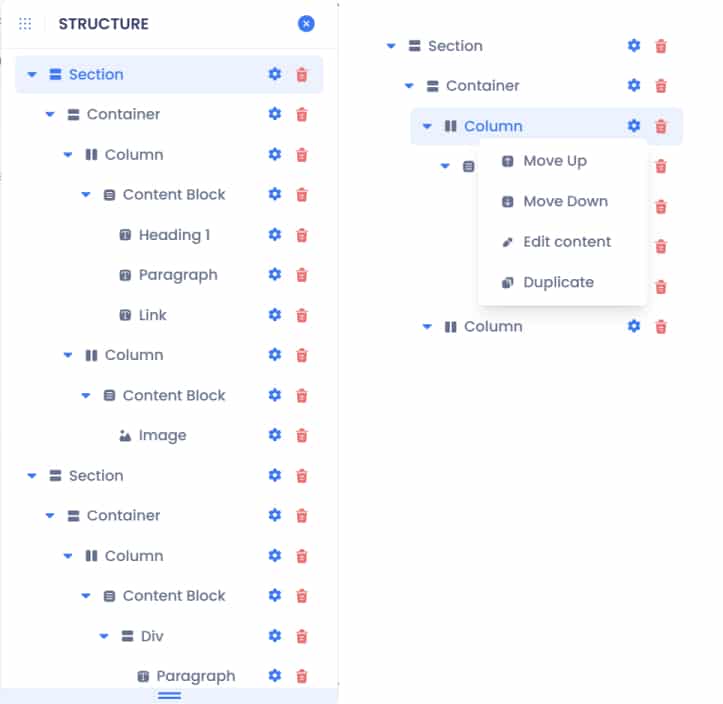
The structure tree also has some unique features to help you manage your page:

  • Clicking an element will set that element as your currently selected element.
  • Clicking edit will allow you to move, edit and duplicate the element. Editing the element will open up the code view.
  • Click the Delete button to delete an element.

⚠️ Just be mindful that the Delete option will also delete all the children of that element.

Still stuck? How can we help?

How can we help?

Basic and Advanced Modes
Table of Contents
  • Using the Structure Tree
SPINNR for
  • Digital agencies
  • Freelancers
How to use
  • Tutorials
  • Inspiration
Other
  • About us
  • Contacts
Copyright © 2025
Privacy Policy
Terms and Conditions