SPINNR establishes a connection with WordPress through a dedicated custom theme. While this theme operates independently, users are required to register an account to unlock and utilize the full functionality of SPINNR.
Downloading the theme #
⚠️ BETA TEST ONLY – THIS IS NOT A PRODUCTION VERSION OF SPINNR
You can download the latest version of the theme from here: https://beta.spinnr.io/wptheme
ℹ️ Please note the following prerequisites for SPINNR with WordPress:
- WordPress version >= 5.8
- PHP version >= 7.4
- MySQL version >= 5.7
- WordPress REST API </aside>
Installing the SPINNR theme in WordPress #
⚠️ Please note that SPINNR is a standalone cloud application. It is not installed with WordPress, but uses a lightweight WordPress theme to connect to WordPress.
SPINNR does not currently work with local or offline development environments (e.g. localhost) unless your site URL is reachable from the public Internet.
You can watch a video of the installation process here: #
- In WordPress, go to Appearance → Themes
- Click Add New or Add New Theme
- Click Upload Theme and then Choose File
- Select the SPINNR theme ZIP file and click Install Now
- Once the theme is installed, click on Activate
- You now need to set up the theme connection to SPINNR. If you don’t already have a SPINNR account this will create one for you, otherwise you can just use your existing SPINNR account. Click on Click here and start the setup process. !
- Next, click Run Setup Process !
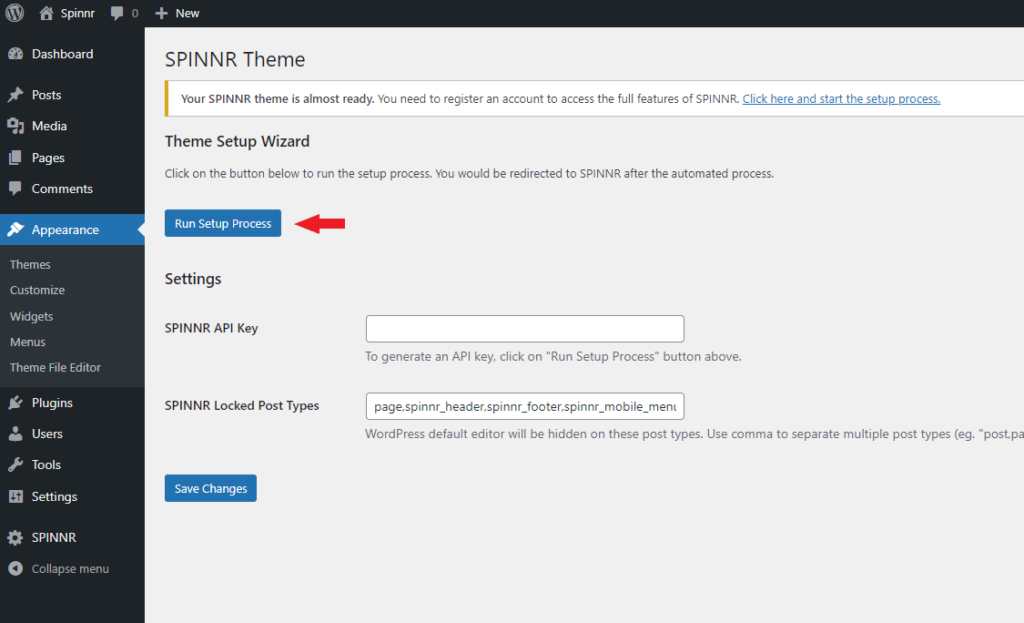
- Now create a SPINNR account or log in with your existing user details. To create an account
- First, enter your email address. The email address should match your WordPress account and that account should have an administrator role.
- Click on Send Verification Code
- Check your email, copy the verification code and paste it into the Verification Code field
- Fill out the rest of the form (name and password)
- Click Create Account
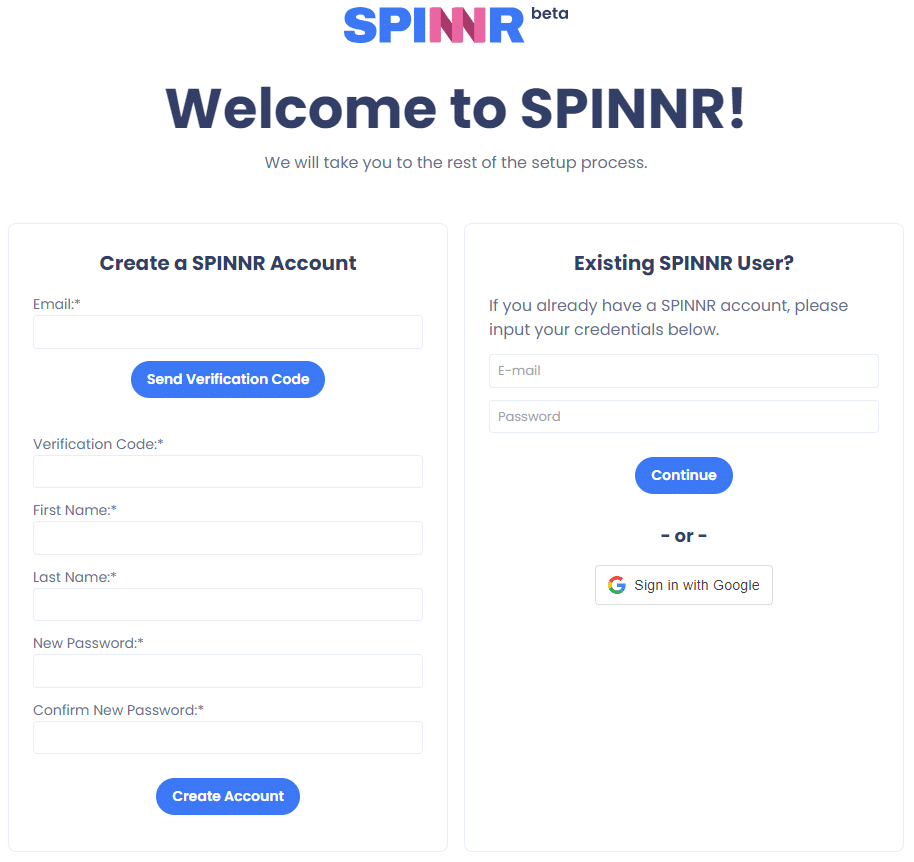
- Next create a project. Fill out the form with your Company Name, email address, website, and most importantly the Project Name. If you need to reconnect SPINNR to the same website at any time in the future, you will have to use the same project name. !
- Click Create Project
- You will now see the API Key details filled in. Your WordPress installation is now connected to SPINNR.
ℹ️ Your WordPress username and password is encrypted and stored on the SPINNR database and is used to access WordPress through the WP REST API. If you don’t want to share your password, you can use Application Passwords as a replacement. See https://make.wordpress.org/core/2020/11/05/application-passwords-integration-guide/